Connecting Shopify for Order status and Product info
How to create a read-only key in Shopify, so the digital assistant can look up orders and products. It cannot change anything with it.
Time needed: 15 minutes
What you need: The account with which you own your Shopify store, and a computer or laptop
Download this guide as a PDF, handy to send to your web builder.
What is this for?
With the extra options Order status and Product info, the digital assistant looks up an order or a product in your Shopify store. For that it needs a key. You create that key yourself, in a few minutes.
Tip: The key gives read-only access. The digital assistant can view orders and products with it, but never change, cancel, refund or ship anything.
Watch out: Since 2026 you no longer create such a key in your Shopify admin, but in Shopify's Dev Dashboard. Does an older explanation mention "Develop apps" in your Shopify admin? That route is closed for new apps. Follow this guide.
Part 1: creating the app
Type
dev.shopify.com/dashboardin your browser's address bar and press Enter. Log in with the same account you use to log in to your Shopify store.You now see the Dev Dashboard, with the menu Apps, Stores and Catalogs on the left.
Click Apps on the left. Then click Create app.
If you don't have any apps yet, Create app is at the bottom, in the Get API credentials bar. If you already have one, the button is at the top right.
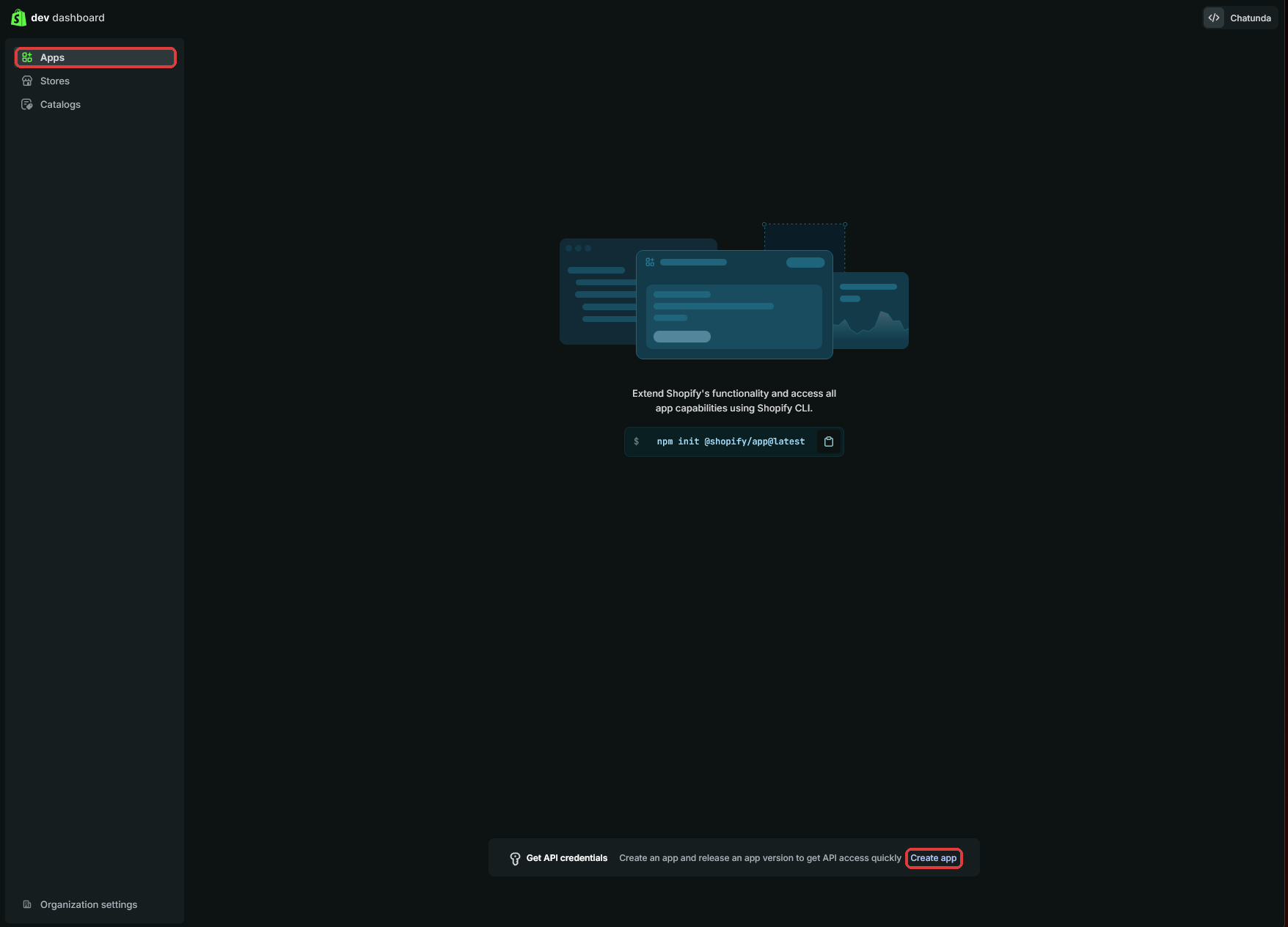
The Dev Dashboard with Apps and the Create app button at the bottom On the right is the Start from Dev Dashboard box. Under App name, type:
Chatunda. Click Create app.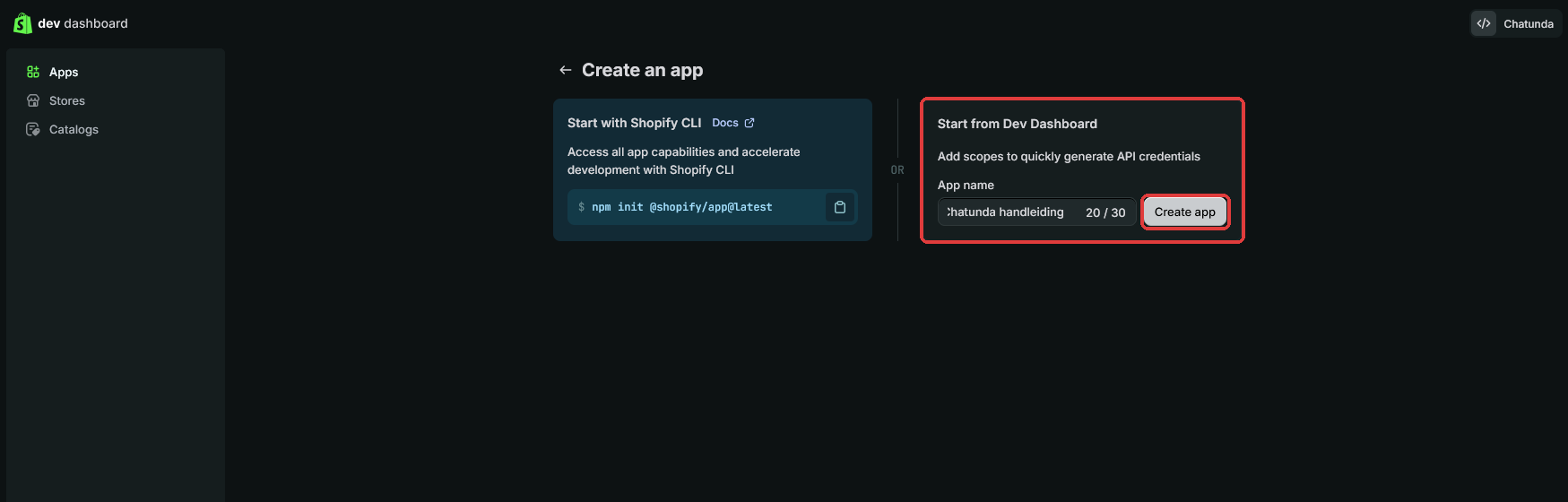
The Start from Dev Dashboard box with the app name and the Create app button You now go straight to the Create version page.
Part 2: setting the permissions
On the Create version page, scroll to the API access section. In the Scopes box, type the permissions you need, separated by commas:
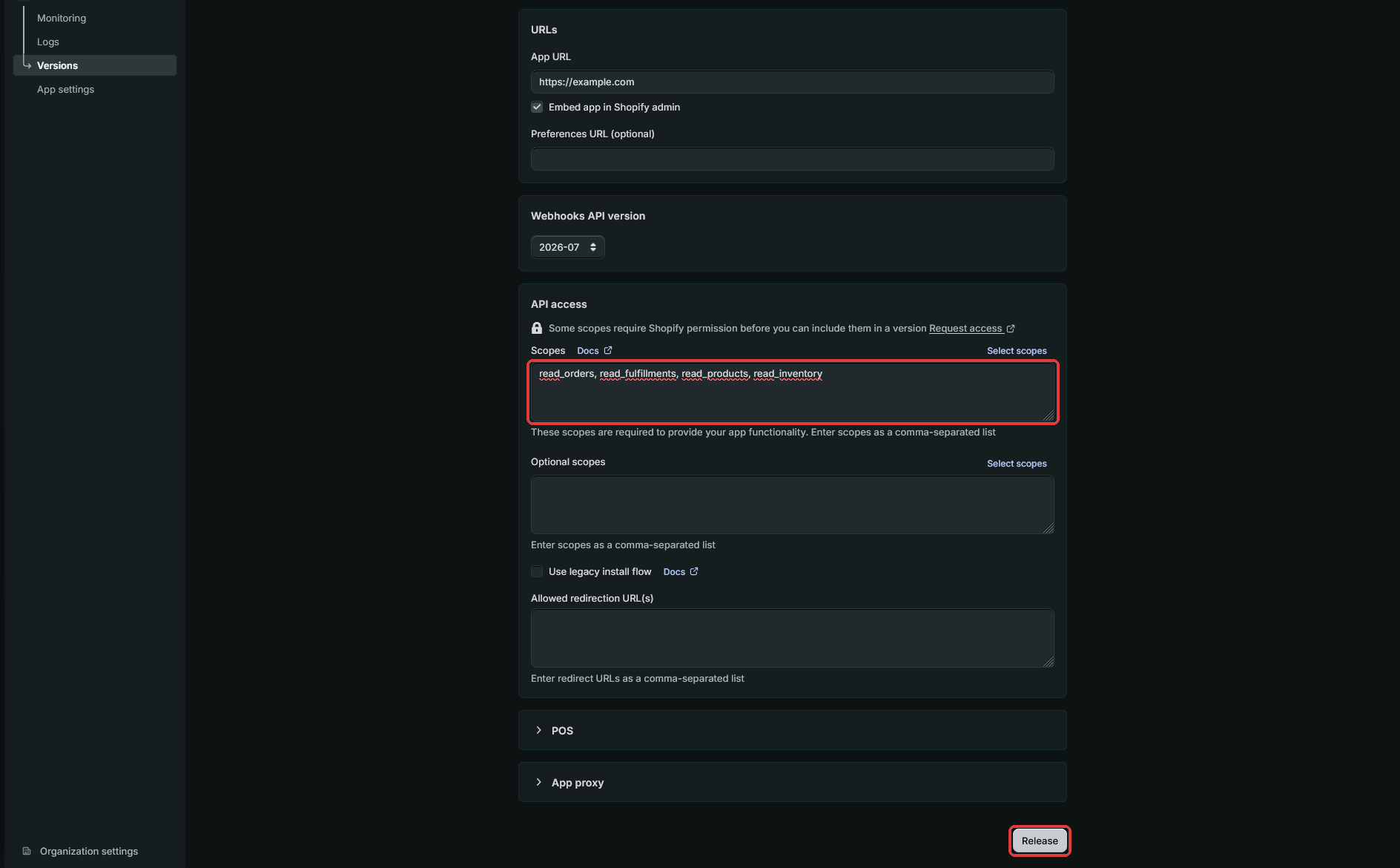
The Scopes box with the four permissions and the Release button - Only Order status:
read_orders, read_fulfillments - Only Product info:
read_products, read_inventory - Both:
read_orders, read_fulfillments, read_products, read_inventory
read_orders, read_fulfillments, read_products, read_inventory- Only Order status:
Leave the rest of the page as it is. The App URL box with
https://example.comcan stay as well.Click Release (at the top right or at the bottom of the page). A window appears. You don't need to fill anything in: click Release once more.
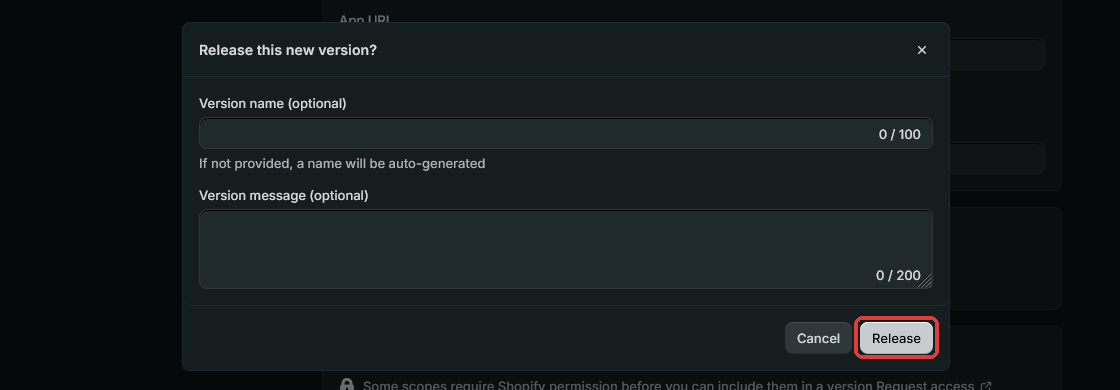
The Release this new version window with the Release button You now arrive at your app's Overview.
Watch out: All permissions start with read_. That means reading. Never add permissions that start with write_: the digital assistant does not need them.
Part 3: installing the app in your store
On the right, in the Installs box, click Install app.
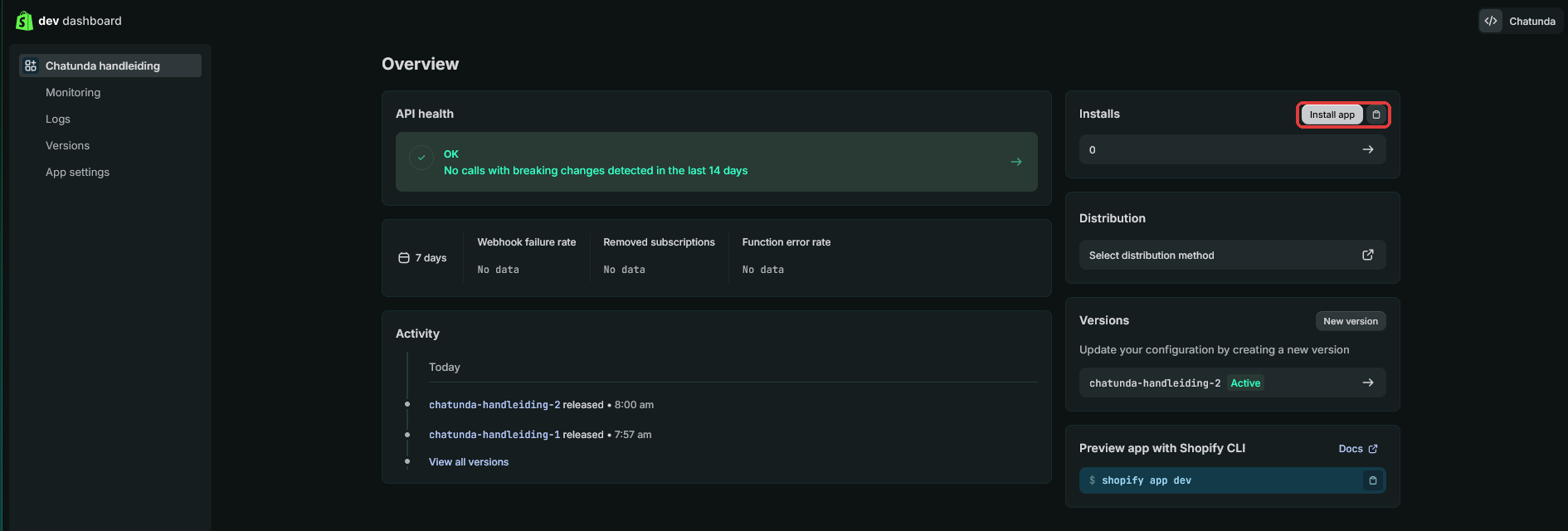
The app overview with Install app at the top right Choose your store.
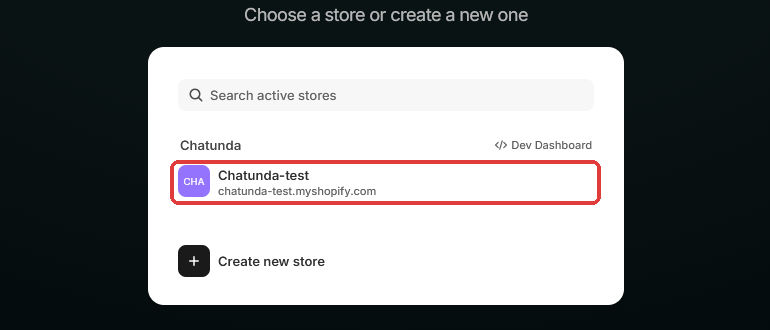
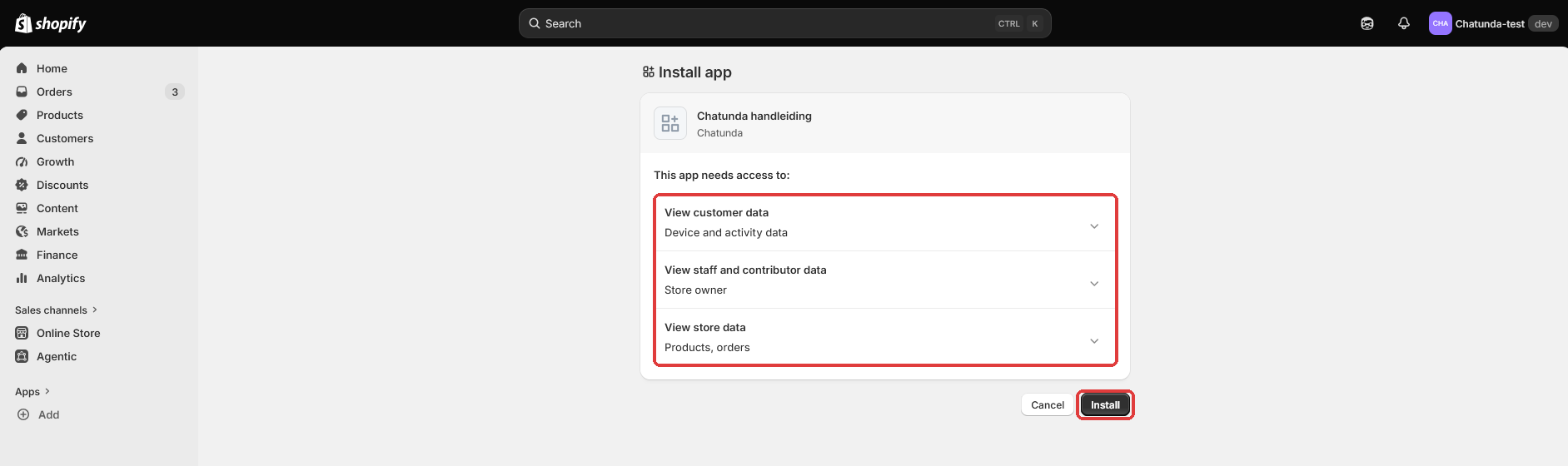
Choosing the store Shopify shows what the app may see. Everything starts with View. Click Install.
The install screen: the app may only view data, with the Install button Shopify now opens the app. Do you see a page saying Example Domain? That is fine: the app has no screen of its own. You can simply leave this tab.
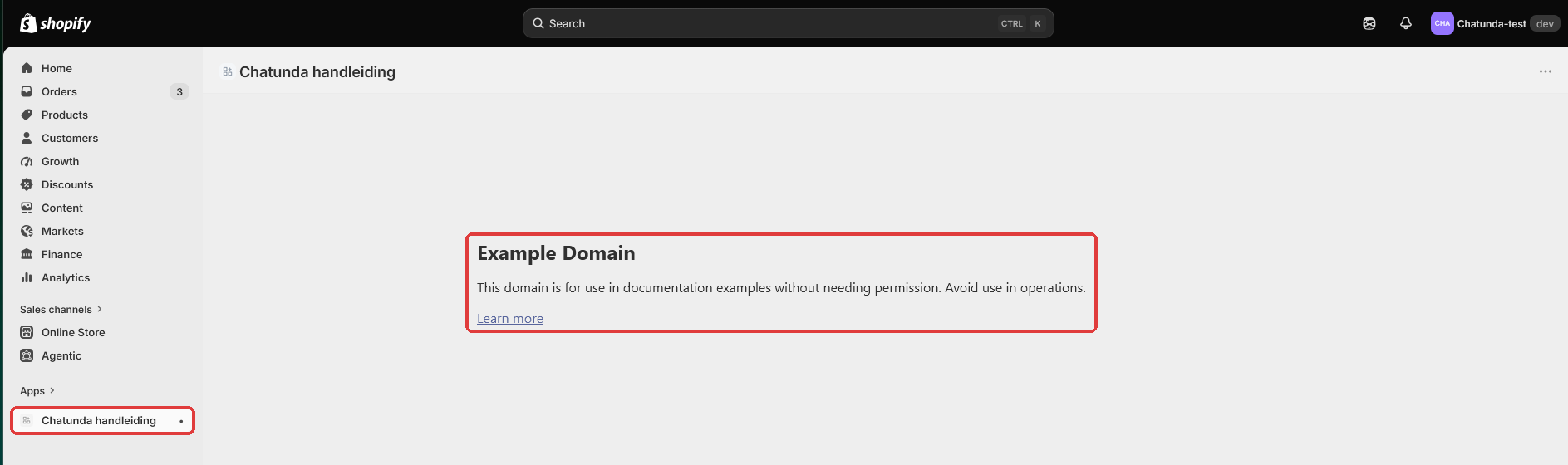
After installing: the app is in the menu and shows Example Domain
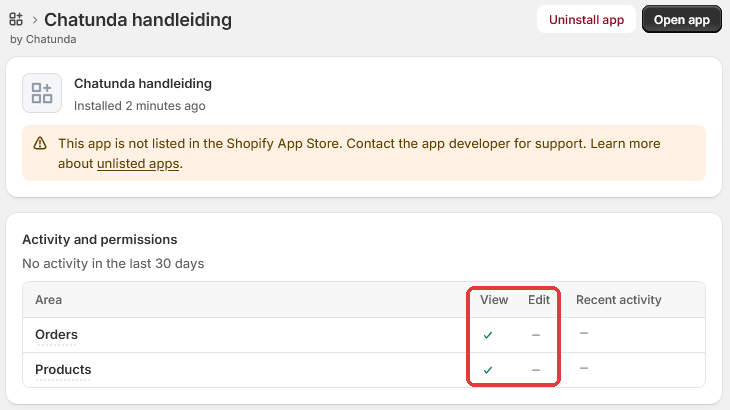
Want to check later what the app may do? In your Shopify admin, click the app on the left, then the three dots ... at the top right and Manage app. Under Activity and permissions only View is ticked, never Edit.
Part 4: copying the key
Go back to the Dev Dashboard: type
dev.shopify.com/dashboardin the address bar. Click your app Chatunda.
The list of apps in the Dev Dashboard Click App settings on the left. Under Credentials there are two codes: the Client ID and the Secret.

App settings with the copy buttons for Client ID and Secret The key for Chatunda consists of those two codes with a colon in between. First the Client ID, then a colon, then the Secret. No spaces:
Copy each code with the copy button to its right. You don't need to reveal the Secret: the button copies it anyway.
clientid:secretEnter the key in the questionnaire under Extra options, in the Read-only key box. First paste the Client ID, then type a colon
:and then paste the Secret.If you switch on Order status or Product info later, you enter the key in Mijn Chatunda, under Uitbreidingen (Add-ons), in the same box.
Under Your shop address, enter the myshopify address. You see it in your browser's address bar when you are in your Shopify admin, or when choosing the store in part 3, for example
myshop.myshopify.com. Even if your store has its own domain name, use the myshopify address here.Click Check the connection. Do you see "Connected to" and the name of your store? Then it works.
Watch out: The Secret is secret, just like a password. Never send it in an ordinary e-mail or chat, not even to us. Only enter it in the questionnaire or in Mijn Chatunda: it is stored encrypted there. Also don't click Rotate: Shopify then creates a new Secret and the old key stops working.
Done? Then your store is connected. You don't need to do anything else. The key keeps working as long as the app is installed in your store.
Tip: Shopify only shows an app the orders from the last sixty days. If a customer asks about an older order, the digital assistant will not find it. For questions about a parcel that is still on its way, sixty days is more than enough.
Adding Product info later
Did you first connect only Order status and are you now adding Product info? Then you don't need to create a new app.
Open your Chatunda app on
dev.shopify.com/dashboard.On the right, in the Versions box, click New version.
In the Scopes box, add
read_products, read_inventoryto the permissions that are already there, with a comma in between.Click Release and in the window Release once more. Approve the new permissions if Shopify asks you to in your store.
Your Client ID and Secret stay the same.
Do you already have an old app from before 2026?
Did you create your own app in your Shopify admin earlier, with an Admin API access token (a code that starts with shpat_)? That keeps working. You can then enter that code as the key instead of Client ID and Secret. Extra permissions for such an old app are added in your Shopify admin: Settings, Apps and sales channels, Develop apps, your app, Configuration.
It doesn't work
- I end up on a documentation page (Shopify Dev Docs). Then you are on Shopify's documentation site. Type exactly
dev.shopify.com/dashboardin the address bar. - I don't see Create app. Log in with the store owner's account. Staff without the right permissions cannot create apps.
- Check the connection says the key is wrong. Check that there is exactly one colon between the two codes, with no spaces, and that the app is installed (part 3).
- No e-mail addresses are found. On the Basic plan, Shopify does not pass customer data to apps. The digital assistant then asks for the total amount of the order instead of the e-mail address. The Check the connection button sets this automatically.
- It still doesn't work. E-mail info@chatunda.com. Feel free to attach a screenshot, but make sure the Secret is not visible on it. We are happy to help.
Version 3, 15 October 2026. Something not right any more? Email info@chatunda.com, we are happy to help.