Connecting WooCommerce for Order status and Product info
How to create a read-only key in WooCommerce, so the digital assistant can look up orders and products. It cannot change anything with it.
Time needed: 10 minutes
What you need: An administrator account for your WordPress website with WooCommerce, and a computer or laptop
Download this guide as a PDF, handy to send to your web builder.
What is this for?
With the extra options Order status and Product info, the digital assistant looks up an order or a product in your WooCommerce webshop. For that it needs a key. You create that key yourself, in a few minutes. One key works for both.
Tip: The key gives read-only access. The digital assistant can view orders and products with it, but never change, cancel, refund or ship anything.
Tip: The screenshots below come from a WordPress admin in Dutch. The buttons are in the same place in English. We give the English names in the text.
First check: the permalinks
WooCommerce only passes on data if your website's links have a readable form. That is almost always already fine, but check it quickly.
Log in to your WordPress admin (usually yourwebsite.com/wp-admin).
In the menu on the left, hover over Settings and click Permalinks.
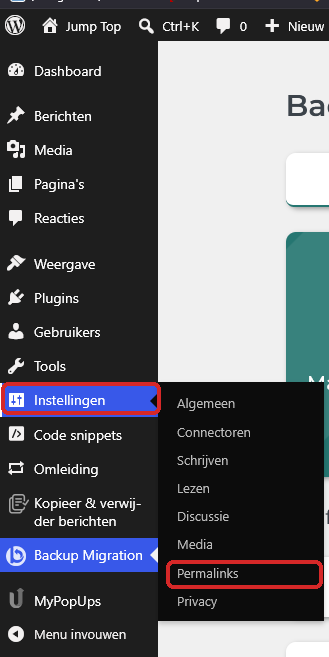
The Settings menu with Permalinks Is the option set to Plain? Then choose Post name and click Save Changes at the bottom. Is it set to something else, such as Day and name? Then you don't need to do anything.
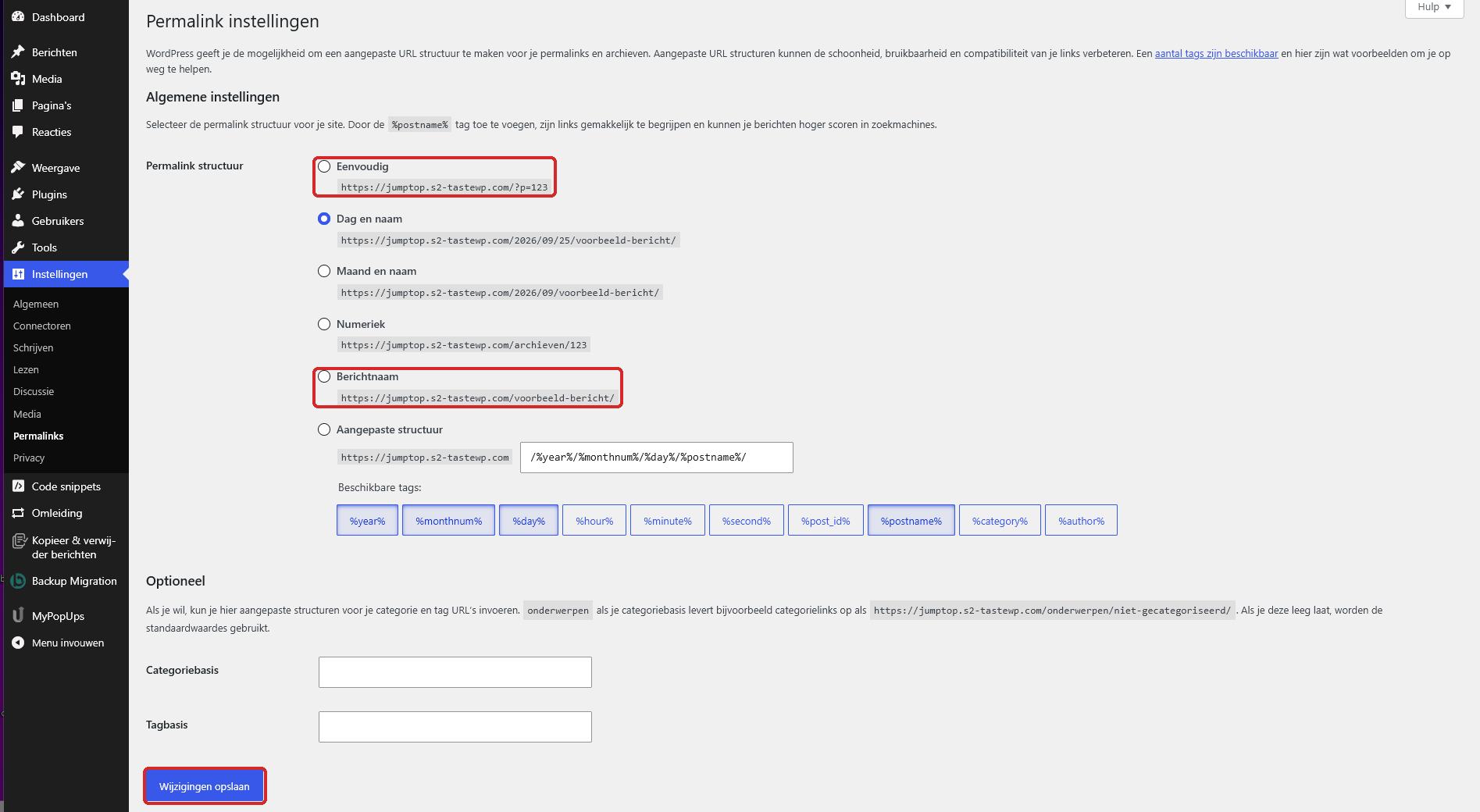
The permalink options: Plain does not work, Post name does
Step by step: creating the key
In the menu on the left, click WooCommerce and then Settings.
Click the Advanced tab at the top. Below it, click the REST API link.
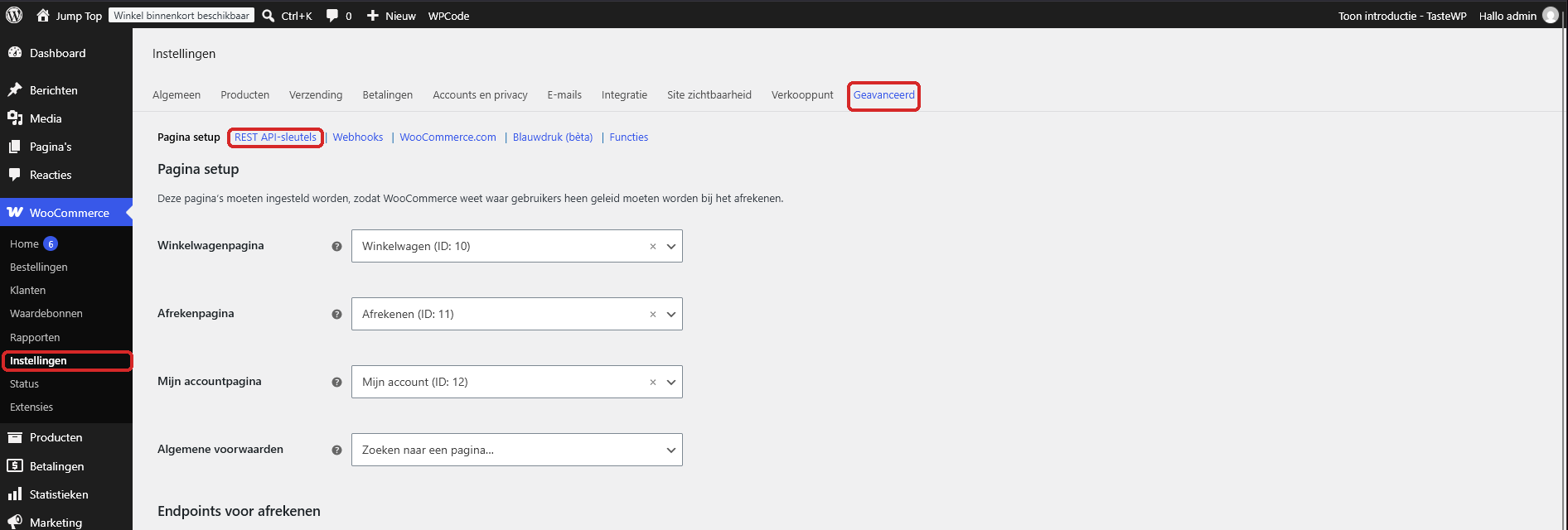
The Advanced tab with the REST API link Click Add key. If there are no keys yet, there is also a Create an API key button in the middle. It works the same way.
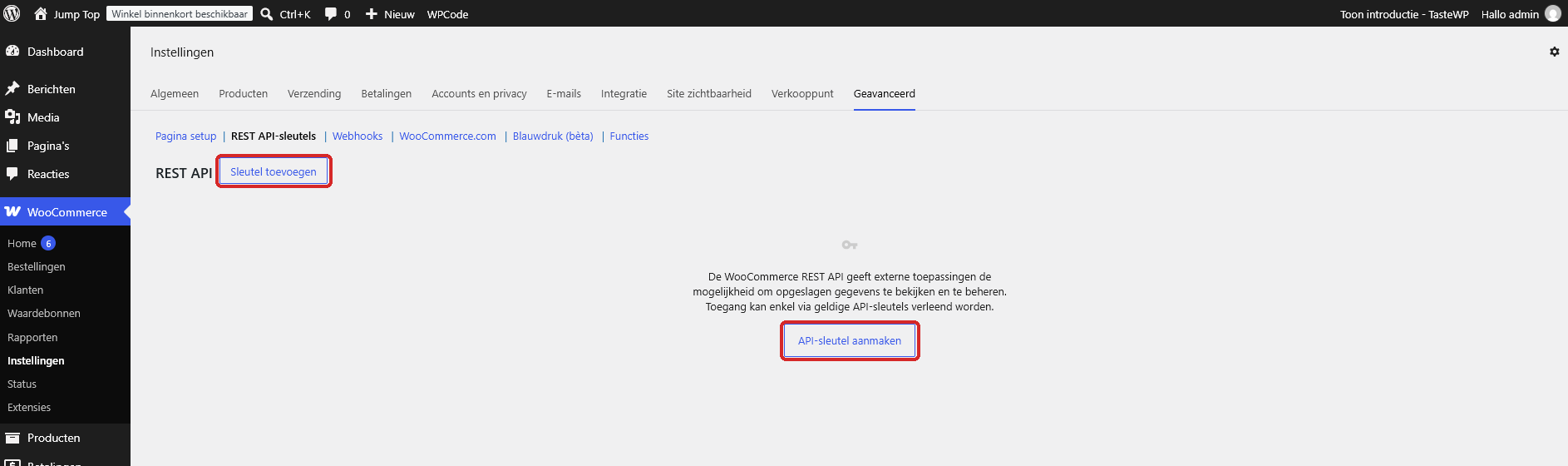
The Add key and Create an API key buttons Fill in the form like this:
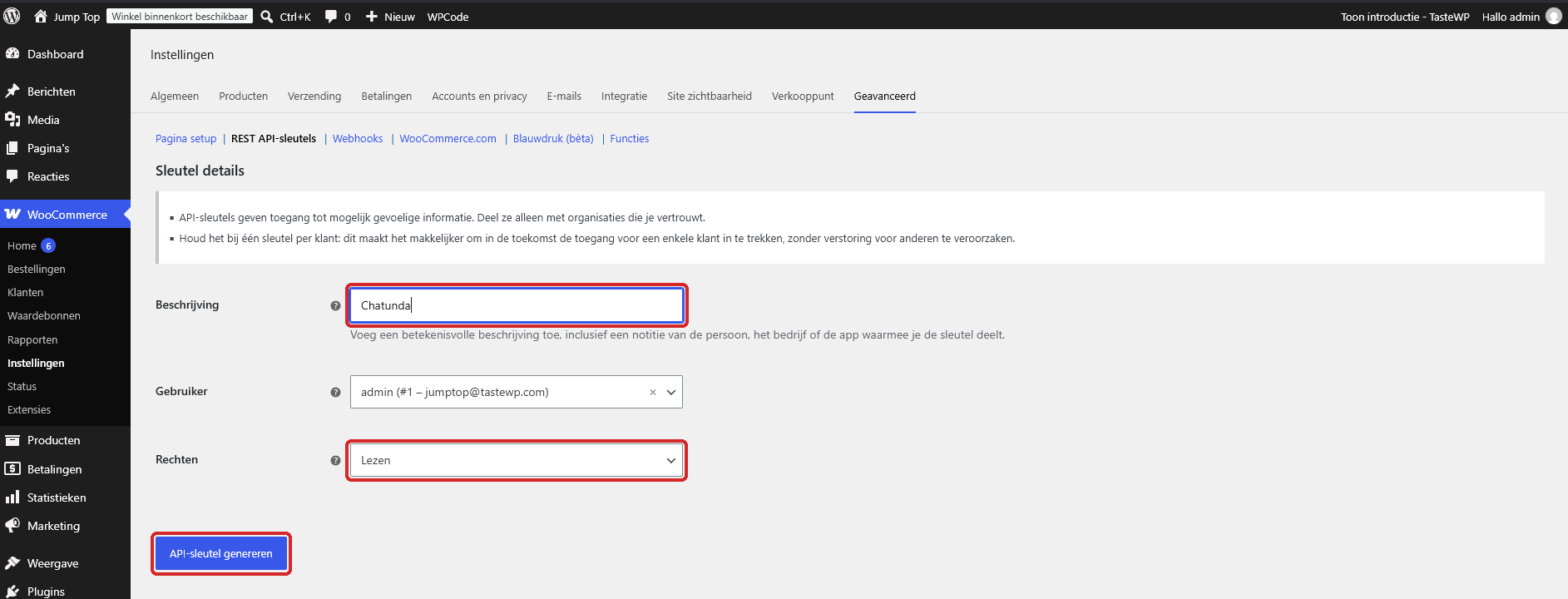
The form with Description Chatunda, Permissions Read and the Generate API key button - Description: type
Chatunda. - User: leave it as it is.
- Permissions: choose Read.
- Description: type
Click Generate API key.
You now see two long codes: the Consumer key (starts with
ck_) and the Consumer secret (starts withcs_).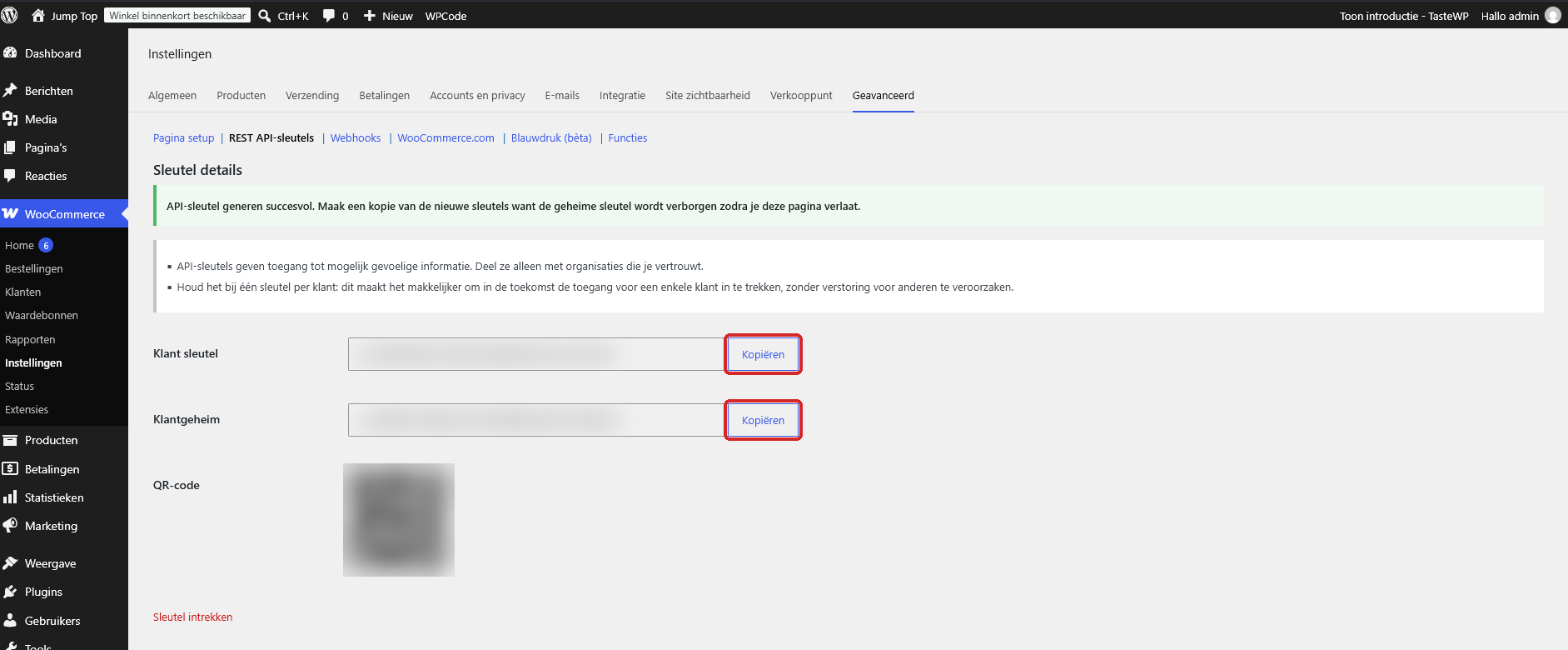
The Consumer key and Consumer secret with the Copy buttons (made unreadable)
Watch out: You only see the Consumer secret once. WooCommerce hides it as soon as you leave the page. So keep this page open until you have entered the key in the questionnaire or in Mijn Chatunda. Lost it anyway? No problem: revoke the key and create a new one.
Entering the key
The key for Chatunda consists of the two codes with a colon in between. First the Consumer key, then a colon, then the Consumer secret. No spaces:
Copy each code with the Copy button next to it, so you don't make typing mistakes.
ck_...:cs_...Enter the key in the questionnaire under Extra options, in the Read-only key box. First paste the Consumer key, then type a colon
:and then paste the Consumer secret.If you switch on Order status or Product info later, you enter the key in Mijn Chatunda, under Uitbreidingen (Add-ons), in the same box.
Under Your shop address, simply enter the address of your website, for example
www.myshop.com.Click Check the connection. Do you see "Connected to" and the name of your shop? Then it works.
Watch out: The Consumer secret is secret, just like a password. Never send it in an ordinary e-mail or chat, not even to us. Only enter it in the questionnaire or in Mijn Chatunda: it is stored encrypted there.
Done? Then your webshop is connected. You don't need to do anything else.
For Product info: stock management
Would you like the digital assistant to also say how many items are left? Then stock management needs to be on.
Go to WooCommerce, Settings and click the Products tab at the top. Below it, click the Inventory link.

The Products tab with the Inventory link Tick Enable stock management and click Save changes at the bottom.
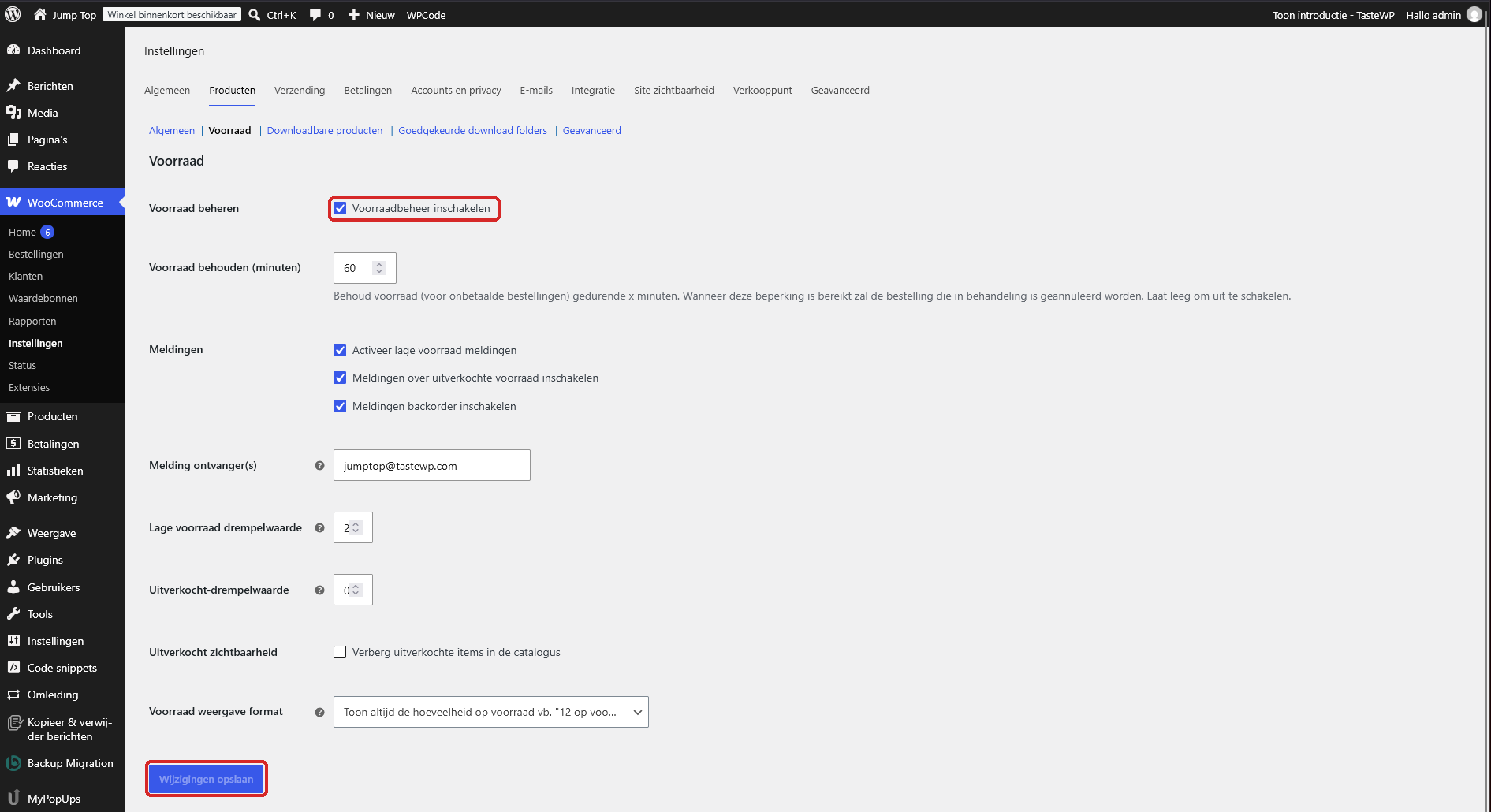
Enable stock management and the Save changes button For each product, on the Inventory tab, tick the option to track stock and enter the quantity.
Without stock management, the digital assistant only says whether a product is in stock or sold out. That is fine for many shops too.
Track and trace
Do you use a track and trace plugin, such as Shipment Tracking or Advanced Shipment Tracking, or the MyParcel plugin? Then the digital assistant finds the tracking code automatically. Do you ship via MyParcel without a plugin? Then also read the guide about MyParcel.
It doesn't work
- I don't see WooCommerce in the menu. Then WooCommerce is not installed or not active. Check Plugins, or log in with an administrator account.
- Check the connection says the key is wrong. Check that there is exactly one colon between the two codes, with no spaces, and that the permissions are set to Read.
- Check the connection says the shop cannot be reached. Check the permalinks (see above). Do you use a security plugin, such as Wordfence? It may block the connection. Then e-mail us and we will sort it out together.
- It still doesn't work. E-mail info@chatunda.com. Feel free to attach a screenshot, but make sure the Consumer secret is not visible on it. We are happy to help.
Version 3, 15 October 2026. Something not right any more? Email info@chatunda.com, we are happy to help.