Placing the chat window in Squarespace
You paste one line of code into the Footer box of Code Injection. After that, the chat window appears on every page.
Time needed: 10 minutes
What you need: Access to your Squarespace website, a Core, Plus or Advanced plan, and the line of code from your Chatunda delivery e-mail
Download this guide as a PDF, handy to send to your web builder.
Before you start
You have received an e-mail from us saying that your digital assistant is live. It contains a line of code that looks roughly like this:
<script src="https://yourshop.chatunda.com/widget/CC-2026-XXXXXX-widget.js"></script>This line is unique to your business. Always use the line from your own e-mail, not the example above.
Watch out: Squarespace only allows your own code with a Core, Plus or Advanced plan (or some older plans). It does not work with the cheapest plan.
Step by step
Open the e-mail from Chatunda and select the whole line of code, from
<scriptup to and including</script>.Right-click the selection and choose Copy, or press Ctrl and C at the same time (on a Mac: Cmd and C).
Log in to squarespace.com and open your website.
In the menu on the left, click Website and then Pages.
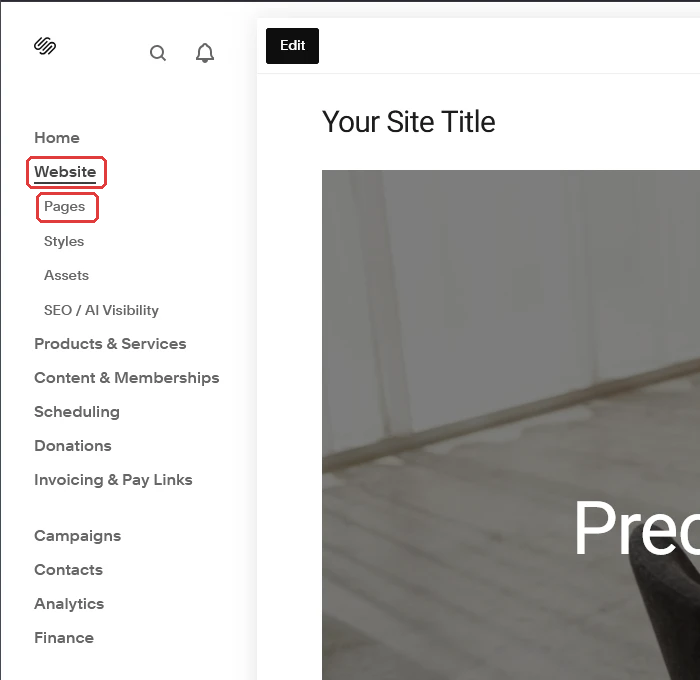
The menu with Website and Pages below it A panel with your pages opens.
Scroll all the way down in that panel. Under Custom Code, click Code Injection.
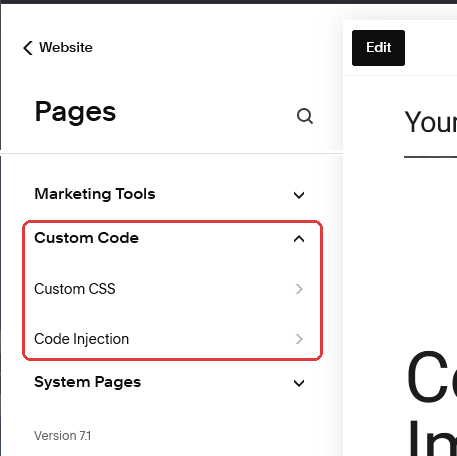
At the bottom of the Pages panel: Custom Code with Code Injection You now see a few text boxes, one below the other. Click in the Footer box.
Is there already text in it? Then click at the very end of that text and press Enter once, so you are on a new, empty line. Don't remove anything.
Paste the code: right-click and choose Paste, or press Ctrl and V at the same time (on a Mac: Cmd and V).
Click Save at the top left.
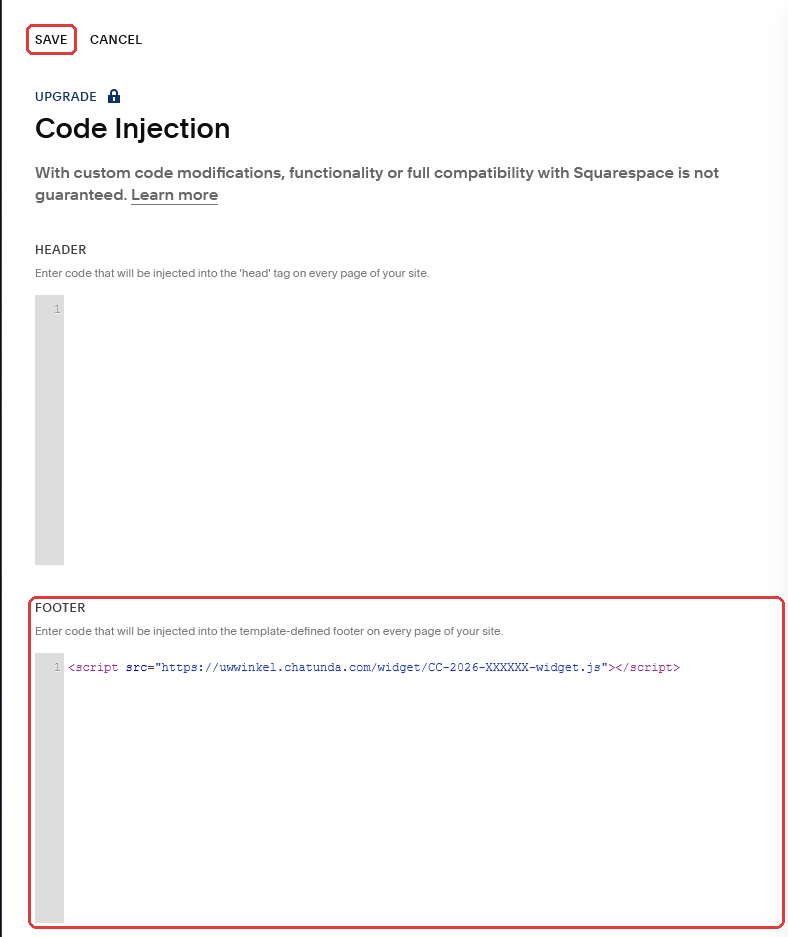
The code in the Footer box and Save at the top left
Watch out: Does it say Upgrade with a padlock above Code Injection? Then your website does not have the right plan yet, for example during the free trial. You can paste the code, but Squarespace only puts it on your website once you have Core, Plus or Advanced.
Watch out: Put the code in the Footer box, not in Header. And not in a Code Block on a page: then the chat window only appears on that one page.
Checking that it worked
Log out, or open your website in a private window (in Chrome: Ctrl, Shift and N), so you see it the way a visitor does.
Refresh the page: press F5 (on a Mac: Cmd and R).
A round button now appears at the bottom right (or bottom left, if you chose that). Click it and ask a question.
Done? Then your digital assistant is now visible to all your visitors. It does not appear on the Squarespace checkout page, because Squarespace does not allow that. That is not needed either.
It doesn't work
- I don't see Code Injection. Then custom code is not included in your plan. Check which plan you have under Settings and then Billing, or e-mail us.
- It still doesn't work. E-mail info@chatunda.com with the address of your website. Feel free to attach a screenshot. We are happy to help.
Tip: Does someone else manage your website? Then forward this guide to them, together with the line of code from your e-mail.
Version 2, 26 September 2026. Something not right any more? Email info@chatunda.com, we are happy to help.