Placing the chat window in WordPress and WooCommerce
You install the free WPCode plugin and paste one line of code into it. After that, the chat window appears on every page of your website.
Time needed: 10 minutes
What you need: An administrator account for your WordPress website, and the line of code from your Chatunda delivery e-mail
Download this guide as a PDF, handy to send to your web builder.
Before you start
This guide applies to every website built with WordPress, including webshops that use WooCommerce.
You have received an e-mail from us saying that your digital assistant is live. It contains a line of code that looks roughly like this:
<script src="https://yourshop.chatunda.com/widget/CC-2026-XXXXXX-widget.js"></script>This line is unique to your business. Always use the line from your own e-mail, not the example above.
We use the free WPCode plugin. It puts the code neatly on every page, without you having to touch your theme files. The code also stays in place if you switch themes later.
Tip: Do this on a computer or laptop, not on your phone.
Tip: The screenshots below come from a WordPress admin in Dutch. The buttons are in the same place in English. We give the English names in the text.
Step 1: installing the WPCode plugin
Log in to your website's admin. The address is usually your website with /wp-admin after it, for example www.myshop.com/wp-admin.
In the menu on the left, hover over Plugins and click Add New Plugin (in Dutch: Plugin toevoegen).
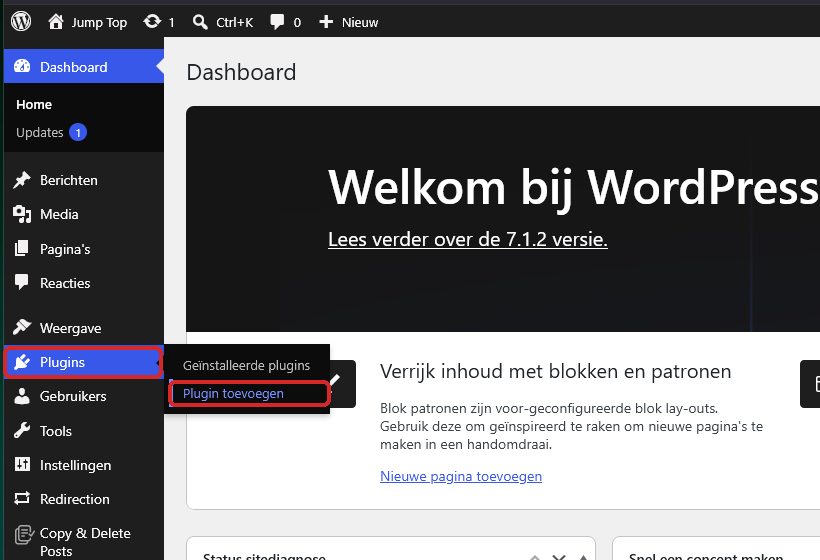
The Plugins menu with Add New Plugin In the Search plugins box at the top right, type:
WPCode.The plugin you are looking for is called WPCode (in full: Insert Headers and Footers + Custom Code Snippets) and has a blue logo. It is usually the first in the list.
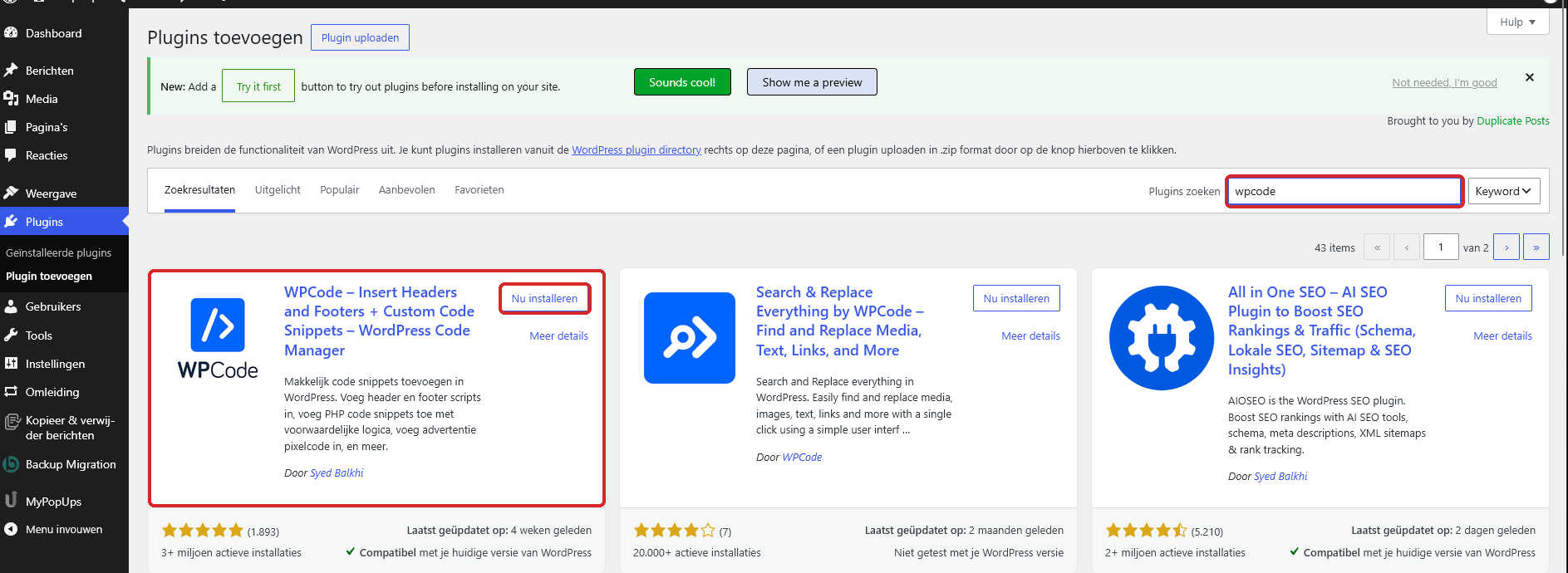
The search results with WPCode and the Install Now button Click Install Now for that plugin. Wait until the button changes to Activate and click it.
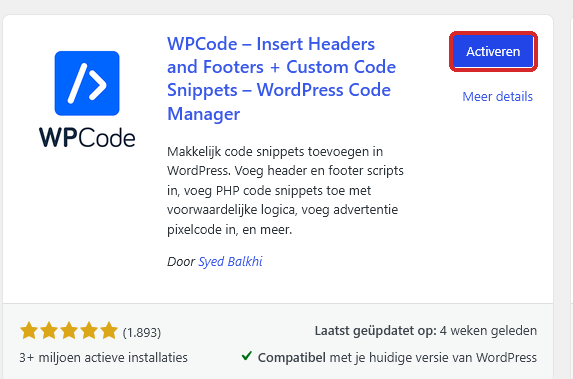
The Activate button for WPCode A new item appears in the menu on the left: Code snippets.
Tip: Already have WPCode or a similar plugin such as Insert Headers and Footers? Then you can skip step 1.
Step 2: pasting the code
Open the e-mail from Chatunda and select the whole line of code, from
<scriptup to and including</script>.Right-click the selection and choose Copy, or press Ctrl and C at the same time (on a Mac: Cmd and C).
Go back to the WordPress admin. In the menu on the left, hover over Code snippets and click Header & footer.
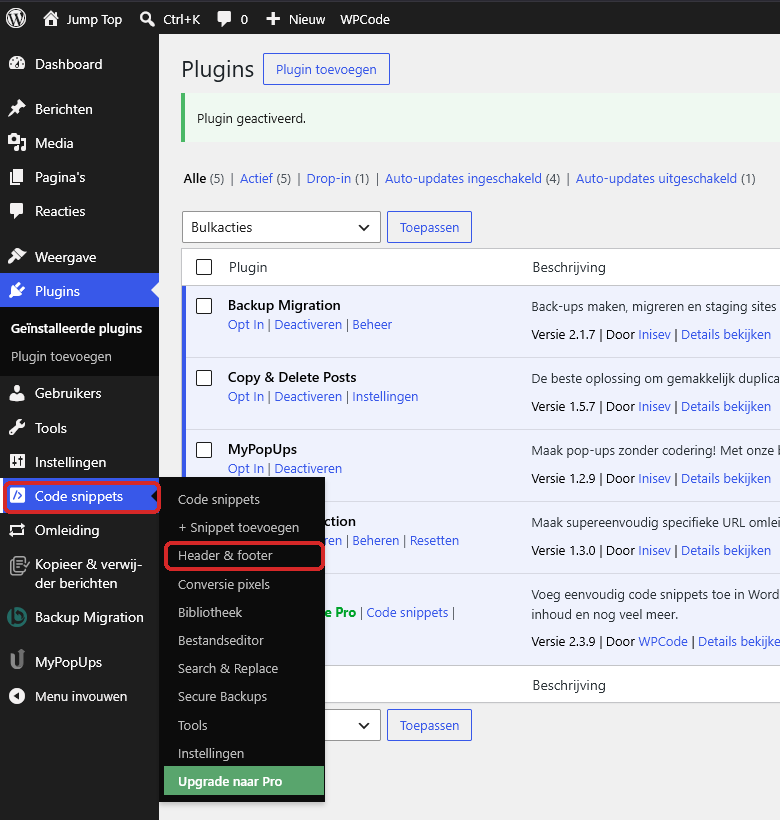
The Code snippets menu with Header & footer You arrive at the Global header and footer page, with three large boxes one below the other: Header, Body and Footer.
Scroll to the bottom box, Footer. Click in it.
Is there already text in it? Then click at the very end of that text and press Enter once, so you are on a new, empty line. Don't remove anything.
Paste the code: right-click and choose Paste, or press Ctrl and V at the same time (on a Mac: Cmd and V).
Click the blue Save Changes button at the top right.
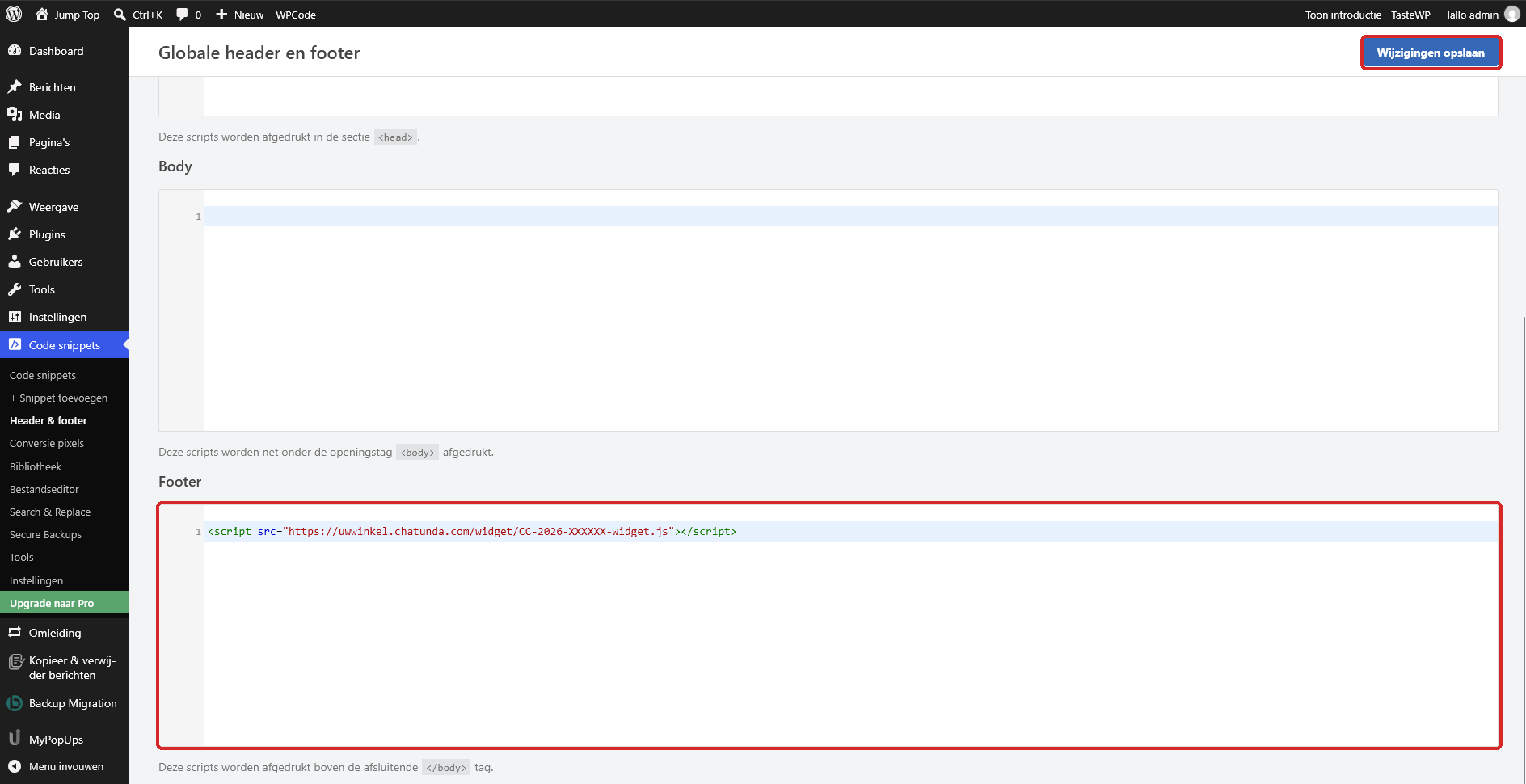
The code in the Footer box and the Save Changes button at the top right A message appears at the top saying the settings have been saved.
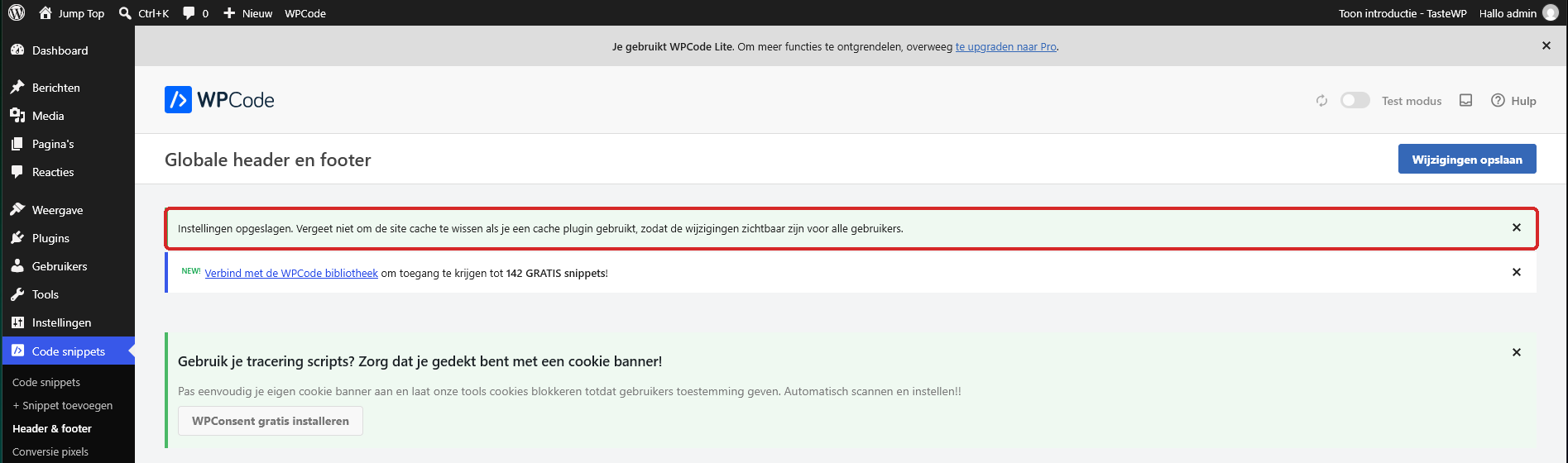
The message that the settings have been saved
Watch out: Put the code in the Footer box, not in Header or Body. That way your website loads first and the chat window after it, so your website stays just as fast.
Checking that it worked
Open your website in a new tab, the way a visitor would.
Refresh the page: press F5 (on a Mac: Cmd and R).
A round button now appears at the bottom right (or bottom left, if you chose that). Click it and ask a question.
Done? Then your digital assistant is now visible to all your visitors. You don't need to do anything else.
It doesn't work
- I don't see a button. Do you use a plugin that makes your website faster, such as WP Rocket, LiteSpeed Cache, W3 Total Cache or WP Super Cache? Then clear the cache: there is usually a button such as Clear cache in the menu at the top or on the left. Then refresh your website.
- I can't find Plugins. You are probably not logged in as an administrator. Ask the administrator or web builder to do it, or to give you administrator rights.
- My website runs on WordPress.com. Installing plugins there is only possible with a paid plan that allows plugins (Business or Creator). E-mail us if you are unsure.
- It still doesn't work. E-mail info@chatunda.com with the address of your website. Feel free to attach a screenshot. We are happy to help.
Tip: Does someone else manage your website, such as a web builder? Then forward this guide to them, together with the line of code from your e-mail.
Version 2, 25 September 2026. Something not right any more? Email info@chatunda.com, we are happy to help.