Placing the chat window in JouwWeb
You add one line of code in the advanced settings of your JouwWeb website. After that, the chat window appears on every page.
Time needed: 10 minutes
What you need: Access to your JouwWeb website, a Pro or Business plan, and the line of code from your Chatunda delivery e-mail
Download this guide as a PDF, handy to send to your web builder.
Before you start
You have received an e-mail from us saying that your digital assistant is live. It contains a line of code that looks roughly like this:
<script src="https://yourshop.chatunda.com/widget/CC-2026-XXXXXX-widget.js"></script>This line is unique to your business. Always use the line from your own e-mail, not the example above.
Watch out: JouwWeb only allows your own code with a Pro or Business plan. It does not work with Free or Lite.
Step by step
Open the e-mail from Chatunda and select the whole line of code, from
<scriptup to and including</script>.Right-click the selection and choose Copy, or press Ctrl and C at the same time (on a Mac: Cmd and C).
Log in to jouwweb.nl and open the Editor of your website.
In the bar at the top, click Settings (in Dutch: Instellingen) and choose Advanced (Geavanceerd).
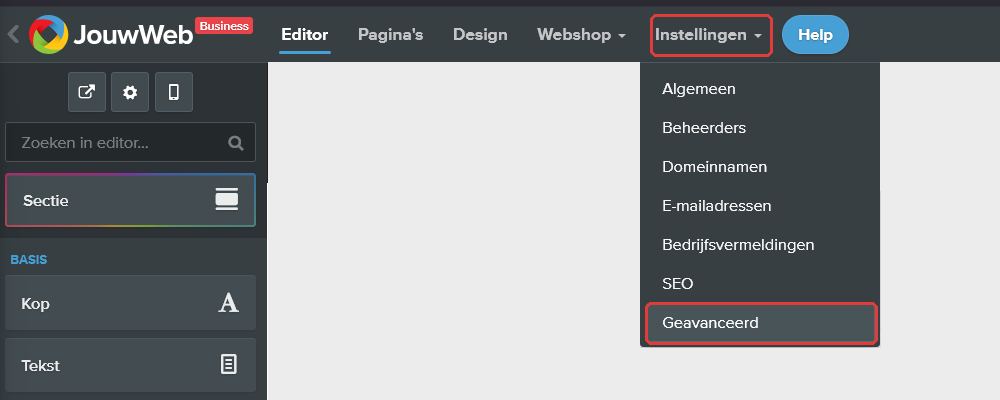
The Settings menu with Advanced Next to HTML code, click Add custom HTML code (Aangepaste HTML-code toevoegen).
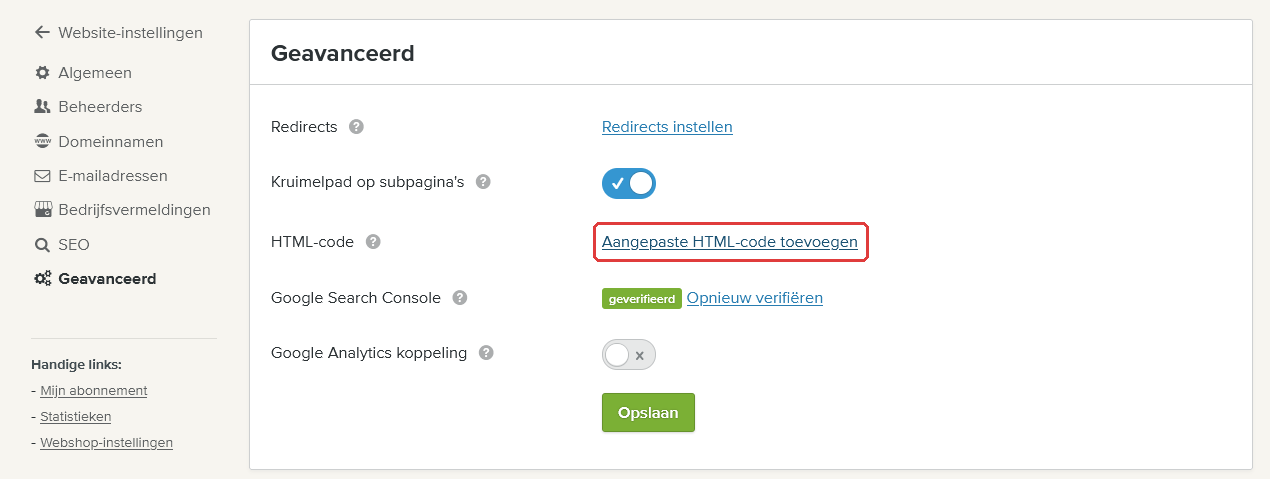
The Advanced page with Add custom HTML code Below the list, click + Add HTML code (+ HTML-code toevoegen).
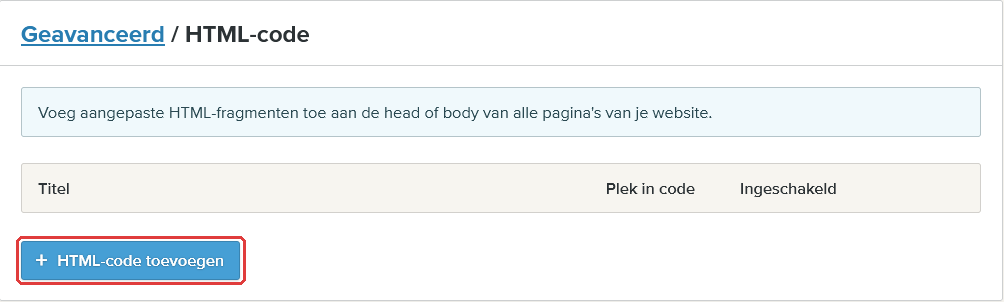
The Add HTML code button A window opens.
Fill in the window like this:
- Leave Enabled (Ingeschakeld) switched on.
- Title (Titel): type
Chatunda. - Position in code (Plek in code): choose the bottom of the three options,
<body> - end.
Click in the HTML box and paste the code: right-click and choose Paste, or press Ctrl and V at the same time (on a Mac: Cmd and V).
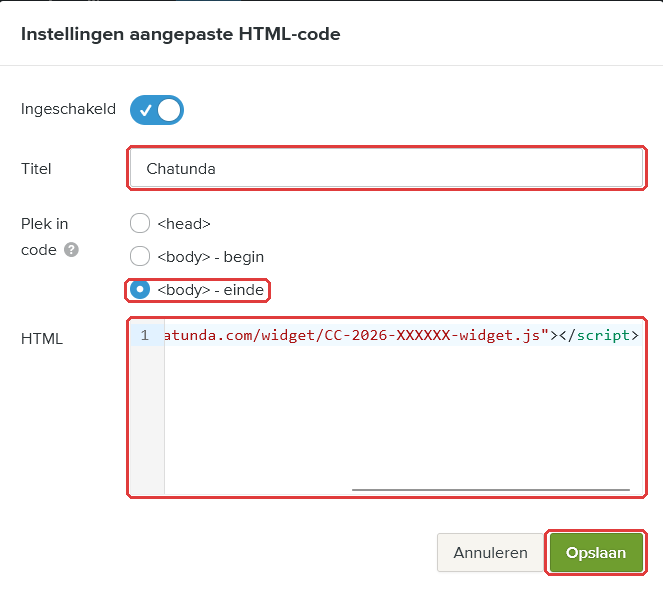
The completed window with the title, body end, the code and the Save button Click Save (Opslaan).
The code is now in the list, marked as enabled.

The Chatunda line in the list, enabled
Watch out: Don't use the Embed Code element on a page for this. Then the chat window only appears on that one page.
Checking that it worked
Open your website in a new tab, the way a visitor would. You won't see the chat window in the Editor itself, only on the real website.
Refresh the page: press F5 (on a Mac: Cmd and R).
A round button now appears at the bottom right (or bottom left, if you chose that). Click it and ask a question.
Done? Then your digital assistant is now visible to all your visitors. You don't need to do anything else.
It doesn't work
- I don't see the Advanced tab or the Add HTML code button. Then custom code is not included in your plan. It works after an upgrade to Pro.
- It still doesn't work. E-mail info@chatunda.com with the address of your website. Feel free to attach a screenshot. We are happy to help.
Tip: Does someone else manage your website? Then forward this guide to them, together with the line of code from your e-mail.
Version 2, 26 September 2026. Something not right any more? Email info@chatunda.com, we are happy to help.